1. Log in to the environment
2. Move the cursor over the name of your page name. A pop-up menu will appear.
3. Click the "Edit" button. The admin side of the page will open with fields where you can start entering/editing information.

To save the information, press the "SAVE" button at the top or bottom of the page.
1. In the "Page title" field, click on the existing page title.
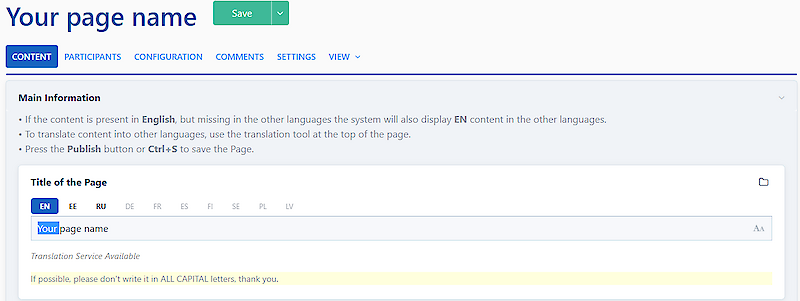
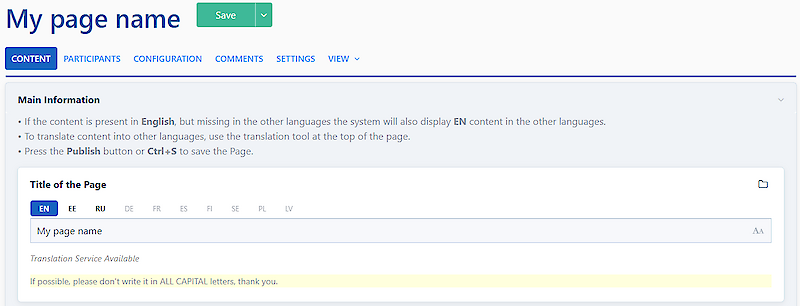
2. Make the appropriate change to the title and click on the "SAVE" button at the top or bottom of the page.
The translation tool always translates the content from the first language in the language selection.
1. Enter the text in the first language choice
2. Click on the language selection to which you want to translate the text.
3. Click on the "Translate from ..." button below the field.
4. The system will insert the translated text into the language you selected.


Press the "SAVE" button at the top or bottom of the page to save the translation.
IN ADDITION, you can also use a comprehensive translation tool.
1. Click on "Translation tool" in the menu bar.
A pop-up window will appear where you can enter the text you need translated. In the box next to it, you can select the language into which the system should translate the text.


This option is only available to the event organiser.
1. Fill in the content of the page in your preferred language.
2. Click on "Translate" under the page title and select the source language (the language you have the content in) and the language you want to translate the page into.
3. To translate sub-pages, activate the "Translate children?" checkbox.
4. Press the "Translate" button to apply the translation.


1. Click on the SETTINGS button on the menu bar.


2. Activate the "Unpublished" or "Hidden" checkboxes under the Status topic.

3. Press the "Save" button.
1. Select "SETTINGS" from the top menu bar.
2. Click on the text "Page URL to edit". The URLs of the different language options will appear, which you can change as you wish.
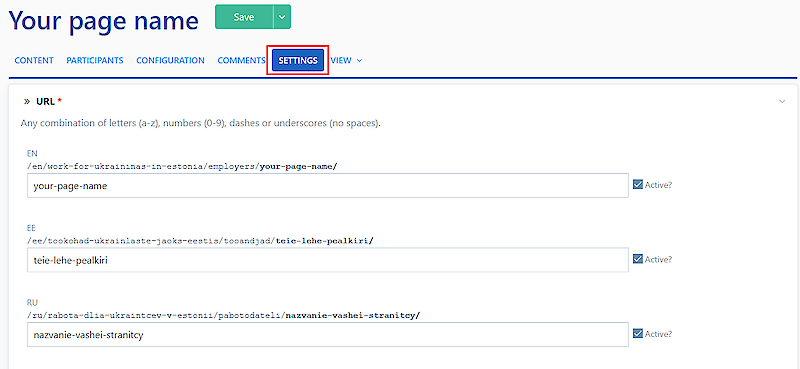
1. Click on "SETTINGS" in the top menu bar.
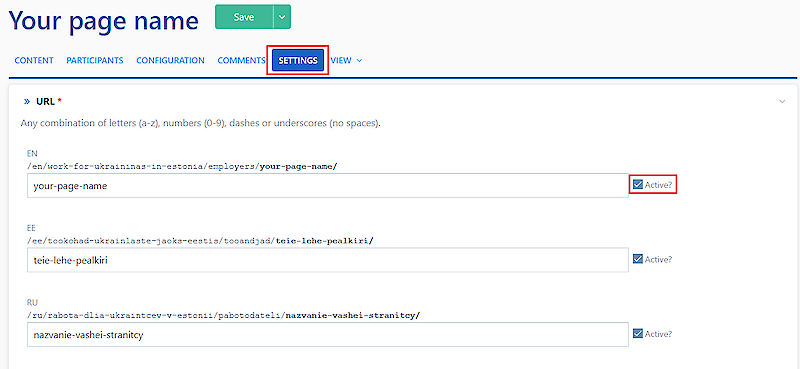
2. Click on the text "Page URL to edit". The URL fields for the different language options will open.
3. Click on the box behind the language choice to activate the language choice. If there is a tick behind the URL, this language option is already active on the page. You can see active language options on top of each field (EN, EE, RU, etc.). 
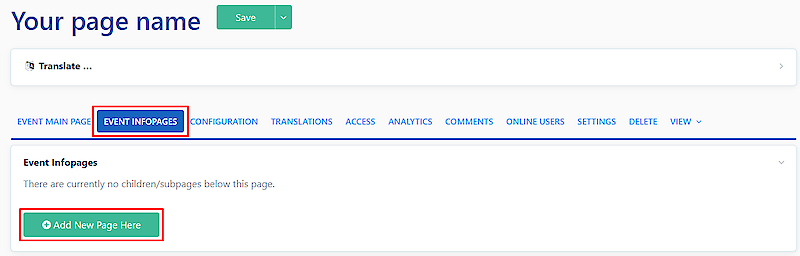
1. Click on "EVENT INFOPAGES" in the top menu bar.
2. Click on the "Add a new page here" button.
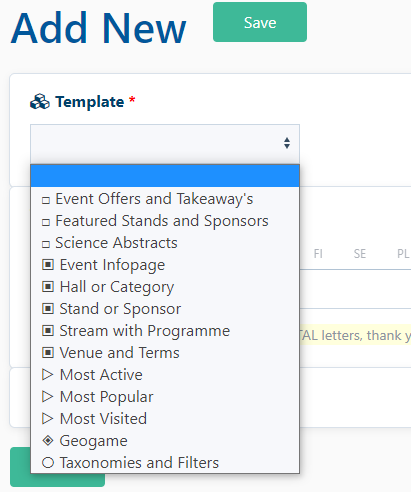
3. Select the subpage type in the "Template" field.
4. Enter the title of the subpage you want to create.
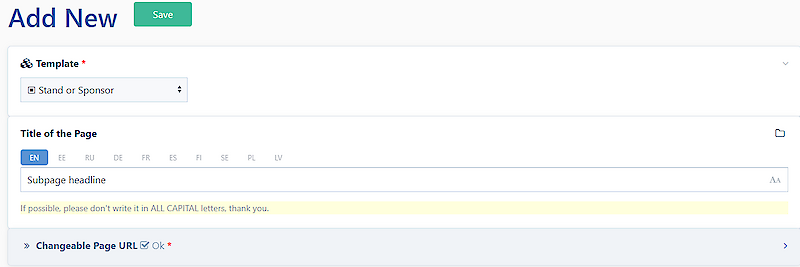
5. Click on the "SAVE" button at the top or bottom of the page.
The created subpage will open where you can start adding information.