1. In the Admin Environment subsection, there is a topic on "Graphical elements". Click on it. The graphics information fields will open.
2. Click on "Logo"
3. Upload your logo file (gif, jpg, jpeg, png) to the environment.
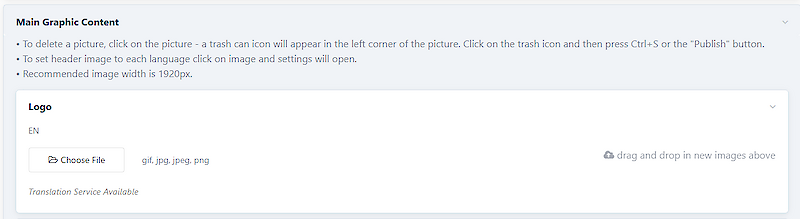
4. Click on the "SAVE" button at the top or bottom of the page.
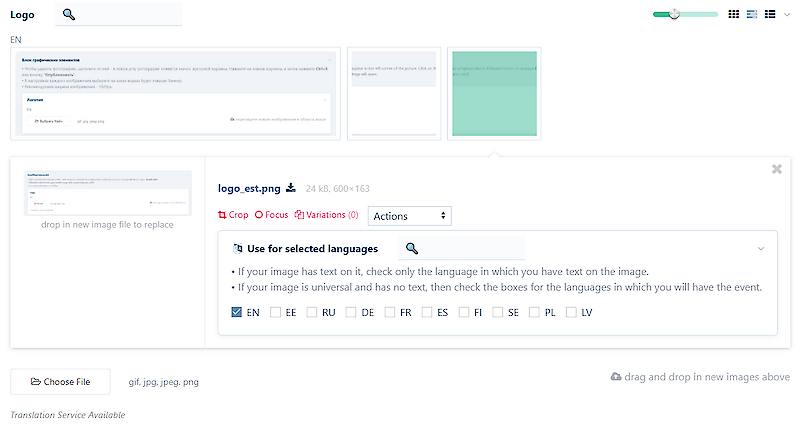
If you have a version of the logo in English, Estonian and Russian and you want to display the logo version in the language selection, please follow the steps below:
- Upload all logo files
- Click on the logo file - the logo settings will open.
- Select the language in which you want to display the logo file and click on all the logo files.
- Activate the checkboxes where you want to activate the logo files
- Click the save button at the top or bottom of the page
The format of the banner is determined by the event organiser. Choice of formats:
- 1920x1200px
- 1920x1080px
- 1920x720px
- 1920x600px
- 1920x480px
1. At the bottom of the admin environment, there is a topic called "Graphical Elements". Click on it. The graphics information fields will open.
2. Click on "Day Banner".
3. Upload a header banner in the appropriate format, at least 1920px wide.
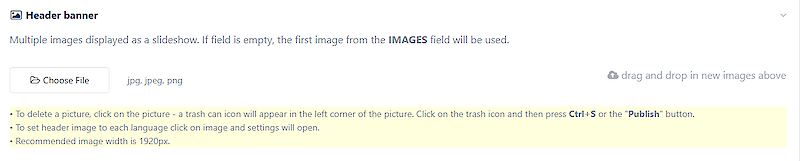
4. Click the "SAVE" button at the top or bottom of the page.
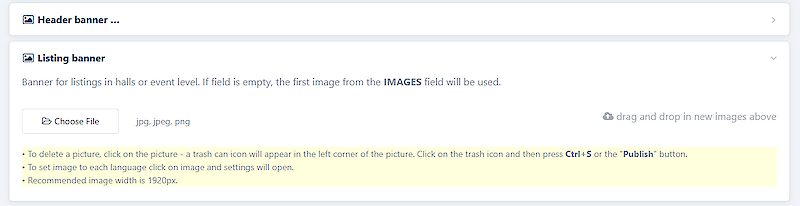
The image added to the list banner field will be displayed as a preview image in the halls or catechories.
1. In the Admin environment, there is a topic called "Graphical Elements". Click on it. The graphics information fields will open.
2. Click on "List of banners".
3. Upload an image file in 1920x1080px format.
4. Click the "SAVE" button at the top or bottom of the page.
The video added to the video banner field is displayed at the top of the page.
1. In the bottom of the Admin environment, there is a topic called "Graphical elements". Click on it. The graphics information fields will open.
2. Click on "Video Banner in the header".
3. In the link field, add a video link address from Youtube or Vimeo.
4. Click on the "SAVE" button at the top or bottom of the page.
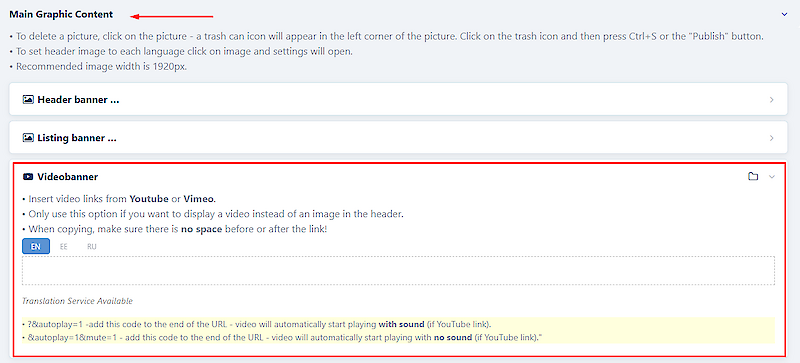
PS: when using video in the header, it will be displayed at 1920x1080px, even if the header is otherwise set to a smaller image area.
With the embed code added to this field, you can place a video uploaded to a medium other than Youtube or Vimeo at the top of the page.
1. At the bottom of the admin environment, there is a topic called "Graphical elements". Click on it. The Graphics information fields will open.
2. Click on the "Video banner header (iframe)" item.
3. Add the video embed code to the field
4. Click on the 'SAVE' button at the top or bottom of the page.
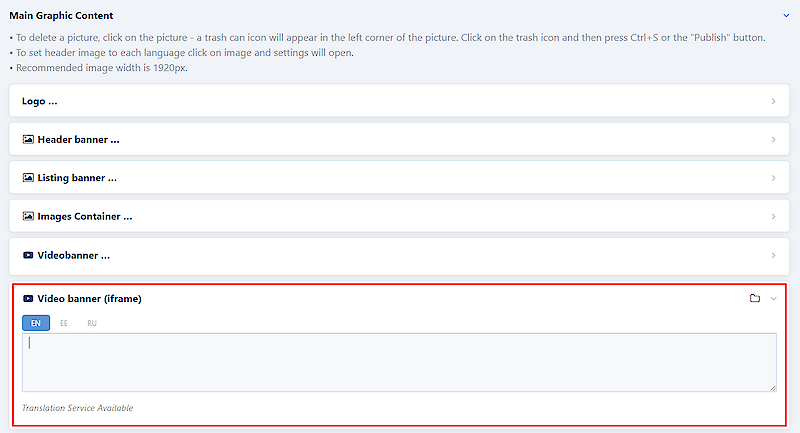
PS: when using a video in the header, it will be displayed in 1920x1080px, even if the page header is otherwise set to a smaller image.
1. Open the information block where you want to change the order of the uploaded images.
2. Click on the image you want to move
3. Move the image to the desired location
4. Click on the "SAVE" button at the top or bottom of the page.
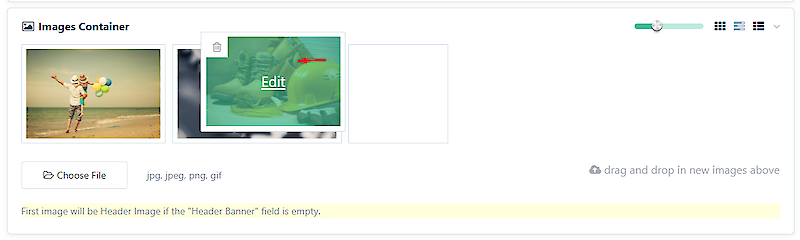
1. Move the cursor over the picture you want to delete. A trash can icon appears in the top left corner of the image.
2. Click on the bin icon - a red line will appear around the image.
3. Click on the "SAVE" button at the top or bottom of the page.
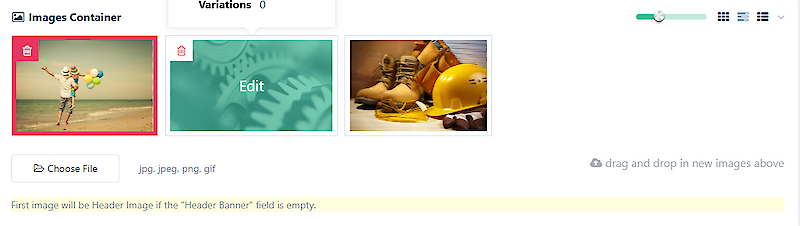
NB: To delete all the images in the infoblock, click the trash icon three times. Red boxes will appear around the images. Click on the 'SAVE' button at the top or bottom of the page.
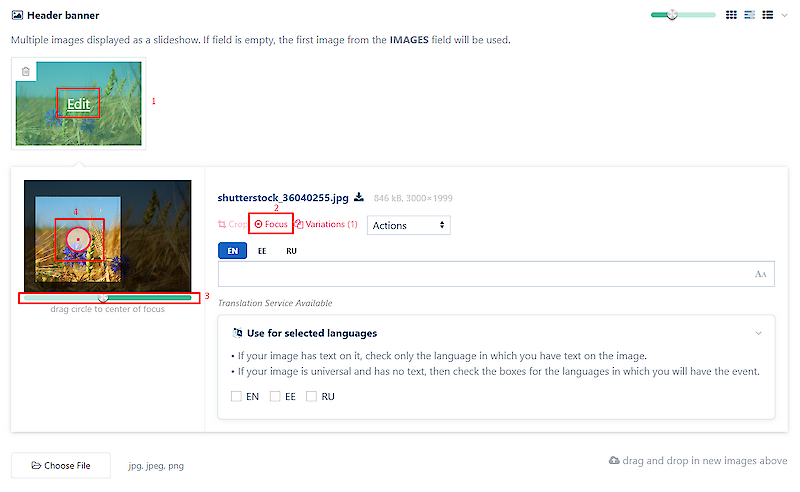
If the uploaded image does not match the image area format, the environment will display a certain area of the image. You have the option to select the area to be displayed. For example, it is a good option to set the display of a Performer image.
1. Click on the image you want to change the focus of.
2. The text "Edit" appears on the image - click on this text.
3. The image settings will open. Click on the "Focus" button.
4. A bar will appear below the image, allowing you to select the area of the image to be displayed.
5. A red circle will appear on top of the image, which you can move to select which part of the image you want to focus on.
6. When the area you want is highlighted, click the "SHOOT" button at the top or bottom of the page.